One imo account may be used for personal chats, while another is kept for work, business, or a different group of contacts. imo lets you keep multiple accounts signed in on the same device and switch between them in just a few taps.
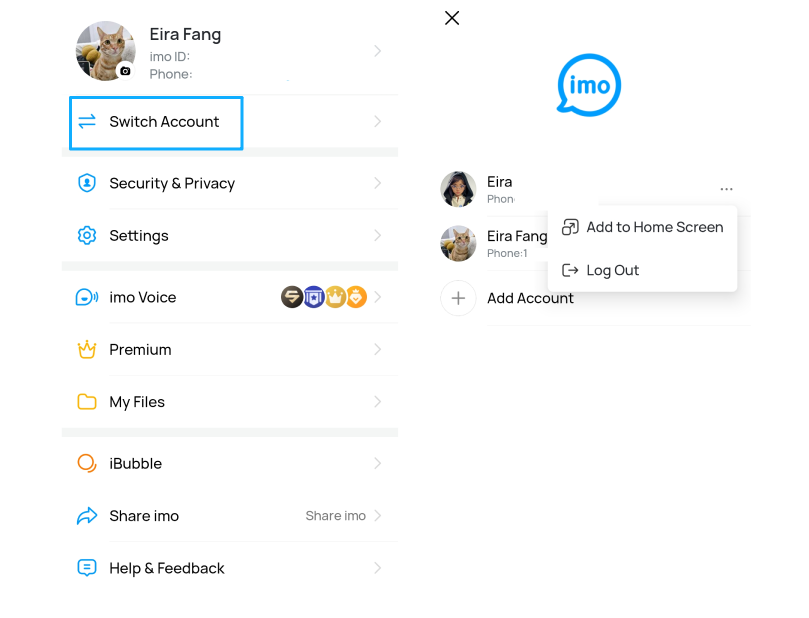
Add More Than One imo Account
Adding another account only takes a few steps.
- Open Me.
- Tap Switch Accounts.
- Select Add Account.
- Sign in with the phone number linked to the other imo account and complete verification.
After multiple accounts have been added, switching between them only takes a few taps. Open Switch Accounts and select the account you want to use. Each account keeps its own chats, contacts, and settings, making it easier to move between conversations whenever needed. This is useful when you use separate imo accounts for personal conversations, work contacts, or different groups of people.
Log Out of an imo Account on Your Device
If you no longer want to use a particular account on your current device, you can log out of it at any time. Logging out only ends the account’s session on that device. It does not delete the account, profile, chat history, or contact list. You can log in again later with the same phone number and continue using the account.
To log out, open Me, tap Settings, select Account & Security, and then tap Log Out. You can also open Switch Accounts, tap the three-dot menu beside the account, and select Log Out.
Logging out of one account does not affect the other imo accounts that remain loged in on the device.
Add an Account to Your Home Screen
An account that you use often can be added directly to your phone's home screen. Open Switch Accounts, tap the three-dot menu beside the account, and select Add to Home Screen.
Once added, a shortcut showing that account’s profile picture appears on your home screen (if your profile picture happens to be a cat, you’ll have a little cat waiting for you!). Tapping the shortcut opens that account directly, eliminating the need to launch imo first and switch accounts manually. If you regularly move between multiple accounts, this shortcut makes switching faster than ever.
One App, Multiple Accounts
Managing multiple accounts does not have to be complicated. imo lets you add another account, switch between saved accounts, remove accounts from the current device, and even create a home screen shortcut for quicker access.
Whether you use different phone numbers for work, family, travel, or different regions, multiple account support makes it easier to keep every conversation available in one place without repeatedly signing in and out.
Explore More imo Features
How to Control Who Can Call You on imo