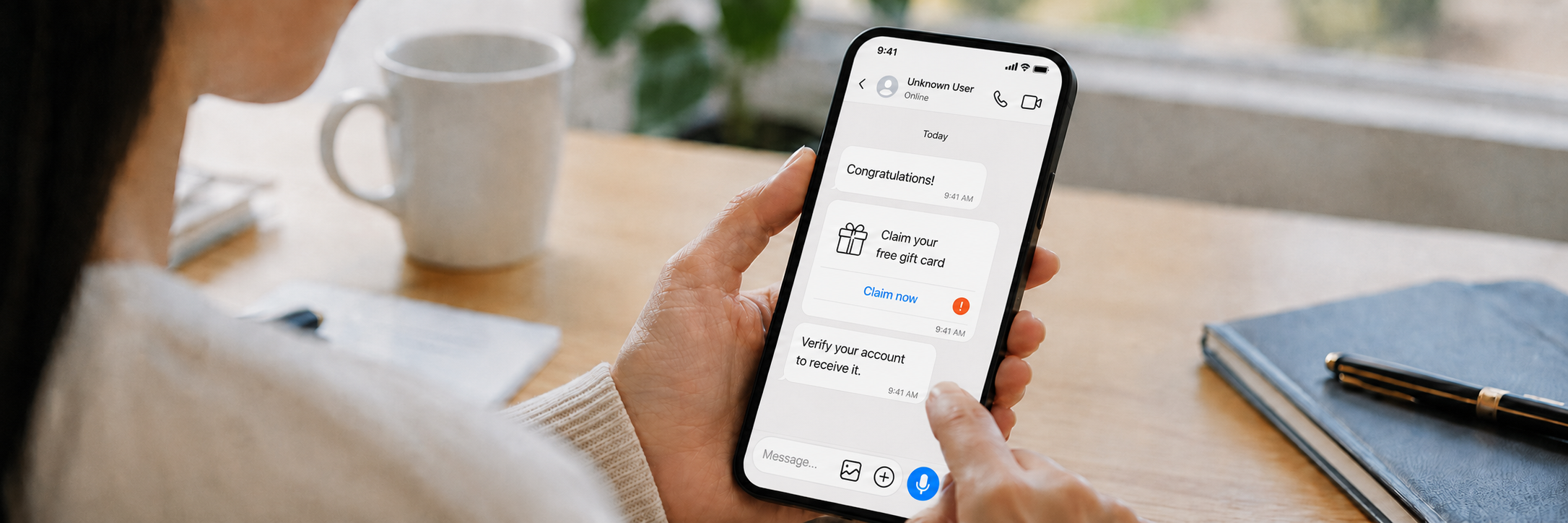
Spam messages on messaging apps can come from unknown accounts, fake customer service profiles, promotional bots, or people who found you through a shared group. These messages often contain phishing links, fake job offers, investment schemes, or requests for verification codes.
Blocking one sender may not stop new accounts from contacting you. Here’s how to block and report spam, review your privacy settings, and reduce unwanted messages from groups and unfamiliar accounts.
Why You May Be Receiving Spam Messages
Receiving spam messages does not necessarily mean your account has been hacked. Your number or username may have been found through a public profile, group chat, invite link, or automated number testing.
Publicly shared contact details
Your phone number or username may appear on a social media profile, business page, marketplace listing, public résumé, or discussion forum. Public contact details can be copied and added to marketing databases or spam lists.
Even an old listing can continue to attract unwanted messages. Deleting the original post will not remove copies already collected by other users or automated tools.
Exposure through groups or invite links
Public groups and widely shared invite links can expose your profile to unfamiliar members. Depending on the app, they may be able to view your username, profile photo, or contact you directly. One member can then send advertisements or suspicious links through private messages.
Your number was tested in bulk
Some spammers automatically test large lists of phone numbers to identify active messaging accounts. They may know only that your number is connected to an account. Messages such as “Hello,” “Are you available?” or “Can we talk?” may be sent simply to see whether anyone replies. Any response confirms that the account is active.
A reply to an earlier spam message
Replying confirms that the account is active and may trigger more messages. Even replying “stop” to an unknown account can provide that confirmation, so block and report it instead.
Do Not Reply, Click Links, or Share Personal Information
Spam messages often begin with a sudden payment request, prize, job offer, investment pitch, or account warning. Replying gives the sender more chances to pressure you into clicking a link, sending money, or sharing personal information.
Check links carefully before opening them. A fake link may use a company name with one changed letter, an unusual domain, or a shortened address that hides the destination. The page may copy the design of a familiar service and ask you to enter a password, payment card, or verification code.
Do not install an app sent through an unknown chat. It may request access to your messages, contacts, storage, microphone, camera, or accessibility settings and use those permissions to collect account or device data. Never share the following through a chat with an unverified sender:
- Login passwords
- SMS or app verification codes
- Account recovery codes
- Bank card details
- Mobile payment PINs
- Passport or identity document photos
- Full home address
- Screenshots containing private account information
If the sender claims to be someone you know, verify the request outside the same chat. Call the person using a saved number, ask a question only they would know, or contact another family member.
Block and Report Spam Messages
Blocking, reporting, and deleting a conversation do different things.
Blocking stops direct contact from that account
Blocking stops that account from contacting you, but it will not stop the same person from using another account or service. Use blocking when the sender is unwanted, abusive, repetitive, or suspicious.
Reporting sends information to the platform
Reporting alerts the platform that an account or message may break its rules. Choose the closest reason available, such as spam, scam, impersonation, harassment, or inappropriate content. Report before deleting if you may need the conversation history.
Deleting only removes the conversation from your view
Deleting a chat usually clears it from your own chat list. It does not necessarily block the sender, report the account, or remove the message from the sender’s device.
If you delete the conversation without blocking the sender, another message may bring the chat back. For obvious spam, report and block first, then delete the chat if you no longer need it.
Review Your Messaging App Privacy Settings
Check whether your messaging app lets you control:
- Who can call or message you
- Who can add you to groups
- Who can see your phone number and profile details
For a personal account, limit these options to contacts where available. Call and message controls may be separate, and blocking a number in your phone settings may not block the same account inside the messaging app.
On imo, open Me > Security & Privacy and review these settings:
- Group: Review who can add you to groups and choose a more limited option if you frequently receive invitations from unfamiliar accounts.
- Method for Adding Me: Check how people can add you through your phone number, imo ID, profile shares, QR codes, groups, VoiceClub, Story, channels, and recommendations. Choose Add Me Upon My Acceptance for entry points that may be used by unfamiliar users, and select Not Allowed for methods you do not use.
- Profile Privacy: Limit the profile details visible to people outside your contacts.
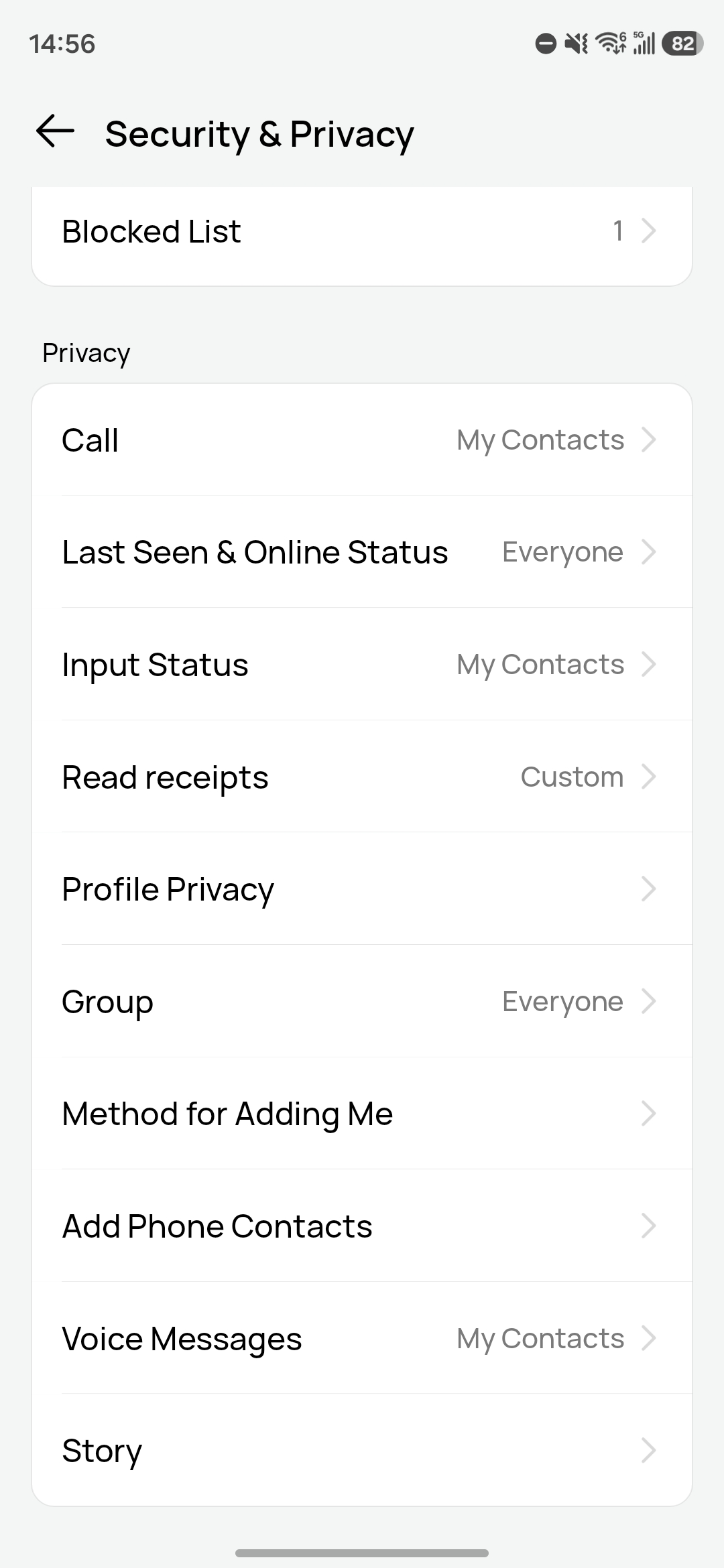
You can also manage previously blocked accounts under Me > Security & Privacy > Blocked List.
Reduce Spam From Group Chats and Invite Links
Before joining, check who sent the invitation and whether the group has a clear purpose. Avoid groups that promise guaranteed jobs, easy money, free products, investment returns, or exclusive offers.
Do not share your address, identity documents, payment details, verification codes, or travel plans in a large group. Treat links from members with the same caution as links from strangers, since an account may be compromised.
Block and report unknown members who send promotions, suspicious links, payment requests, or questions about your personal information. Group administrators should also remove repeat spammers and restrict unnecessary invite links.
What to Do If You Responded to a Spam Message
Opened the chat only
If you only opened the chat, block and report the sender, then delete the conversation. Changing your password is usually unnecessary unless you opened a link or shared account information.
Clicked the link but entered nothing
Close the page and check whether the browser downloaded a file. Delete any file you did not intend to download. Do not grant notification permission to the website. Some suspicious sites use browser notifications to keep sending fake security alerts and advertisements after the original page is closed.
Entered your password
Change the password immediately through the official app or website, not through the link in the message. Use a new password that is not shared with another account.
Check for unfamiliar devices or active sessions and sign them out. If the same password is used elsewhere, change it on those accounts too.
Shared a verification code
Check whether a new device has logged in to the account and remove any device you do not recognize. Review your profile details, privacy settings, and recent conversations for changes. Tell close contacts if the account sent messages without your permission, so they know not to trust unexpected requests sent from your account.
Entered payment details or sent money
Contact your bank, card provider, or payment service as soon as possible. Ask whether the transaction can be stopped or reversed and whether the card or account should be frozen or replaced.
Keep screenshots of the conversation, payment details, account name, and transaction reference. Report the sender inside the messaging app and follow the fraud-reporting process available in your country.
Installed an unknown app
Disconnect the device from the internet, remove the app, and review the permissions it received. Pay particular attention to accessibility access, device administrator rights, notification access, screen-sharing permissions, and SMS access. Run the device’s built-in security scan or a trusted security tool. If the app had access to sensitive information, change important passwords from another trusted device.