
imo Web (web.imo.im) lets you access your chats directly from a browser. It syncs with your mobile app so your messages stay updated across devices.
If you’re trying it for the first time, follow the steps below to log in and get started easily.
Step 1: Set Up Your Account on Mobile
Before you log in to the imo web version, you must have an active account on your smartphone. Registration is only available via the mobile app. Download the imo app from the Google Play Store, Apple App Store, or our official website. If you are in the U.S. region, you need to switch your app store region before downloading. Please refer to imo U.S. download guide for more details.
Register with your phone number and complete your profile setup (name and photo).
If your account is already working on mobile, you can skip this step.
Step 2: Log In via web.imo.im
Once your mobile account is ready, you can access imo Web from any browser at web.imo.im.
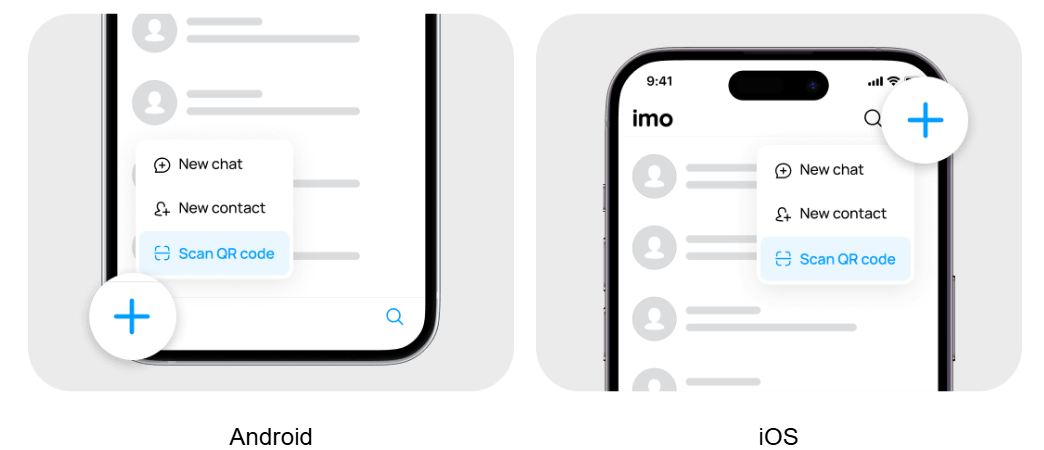
For faster access, log in by scanning a QR code with your imo app. You can also log in using your phone number. Select your country, enter your number, then enter the 4-digit verification code sent to your imo app. Make sure you're logged into the app on your phone to receive it. Once verified, your chats and contacts will load automatically.
imo Web Login Issues: Common Problems and Fixes
Q1: Didn’t receive the imo Web login code?
A: Make sure your internet connection is working. The code usually shows up in the imo app chat.
Q2: Can a new account be created directly on imo Web?
A: No. For security reasons, new accounts must be registered and verified through the imo mobile app first.
Q3: Browser not working properly?
A: imo Web works on all modern browsers, including Chrome, Safari, and Edge. To ensure all features, like secure file sharing and real-time notifications—work correctly, please keep your browser updated to the latest version.