Photos shared in an imo chat are organized under Media > Photo Album. You can browse photos from that chat, open them in full view, and share or download them. The Media page also includes voice messages, files, and links from the same chat.
How to Find imo Photo Album in a Chat
Photo Album is available from the Media section of an imo chat. To open it:
- Open imo and select the chat where you want to find the photos.
- Tap the three-dot icon in the top-right corner of the chat.
- Select Media.
- Open Photo Album.
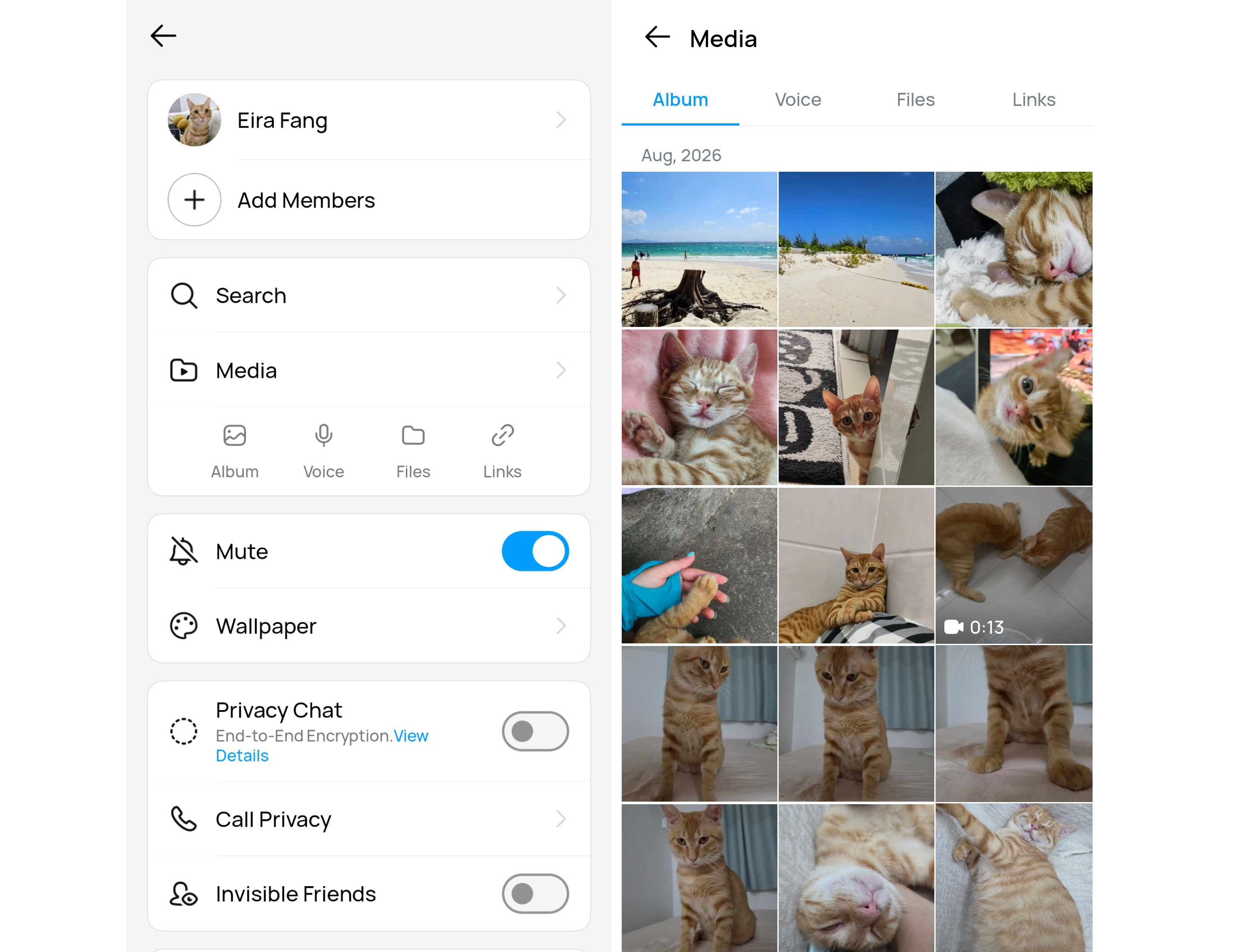
The album displays the photos shared in that chat. Tap a thumbnail to open the full image. Each 1v1 chat and group has a separate Photo Album. To view photos from another conversation, open that chat and go to Media > Photo Album. For older photos, browse the album around the date they were sent instead of scrolling through the full chat history.
https://imo.im/en/faq/How-to-find-media-files-in-imo
Share, Download, or Manage Photos in imo Photo Album
Open Photo Album and tap a photo to view it in full size. The download and share buttons appear in the bottom-right corner.
You can also press and hold a photo in the album to open more options:
- Show in Chat locates the original photo in the chat.
- Share sends the photo to another imo contact or chat.
- Download saves the photo to your phone.
- Delete removes the selected photo.
Downloaded photos can usually be found in your phone’s Gallery or Photos app. If the image does not appear, check whether imo has permission to access photos or storage, then download it again.
What to Do If a Photo Is Missing
Open the original chat and check whether the photo message is still there. If it was deleted from the chat, it will no longer appear in Photo Album.
Photos sent with disappearing messages or other temporary-message settings may be removed after they are viewed or when the timer expires. Also confirm that you opened the correct private chat or group, since each chat has its own Photo Album.
Read more: