
Most account logins end as soon as the SMS code is entered. Anyone who obtains that code may be able to sign in on another device. The code could be read from an unlocked screen, entered on a fake login page, or shared with someone pretending to offer support.
With two-step verification turned on, the SMS code only completes part of the login. A new device still has to pass another check before the account opens.
How Does Two-Step Verification Work?
After the usual login check, the service asks for another form of verification before opening the account. The second check may ask you to:
- Approve the login on a trusted device
- Enter a PIN created earlier
- Enter a code from an authenticator app
- Use a fingerprint, face scan, or security key
- Answer questions about the account
A trusted-device check is completed on a device that is already signed in, while a PIN, authenticator app, or security key must be set up beforehand.
How Two-Step Verification Protects Your Account
When a login comes from a new phone, the account may remain locked even after the correct SMS code is entered. The login still needs approval from a trusted device, a separate PIN, or another account check.
A second step can also help if a SIM card is moved to another phone or a phone number is taken over. A trusted-device approval or separate PIN can still stop them from completing the login. If the second step is another code sent to the same number, it will not stop someone who already controls that number.
Two-step verification cannot help if both steps are given away. Someone posing as customer support may first ask for the SMS code and then request the PIN or tell you to approve a login notification. Do not approve a request that appeared without a login you started yourself.
How to Enable or Disable Two-Step Verification
In imo, the feature is called Login Protection and offers Basic Mode and Advanced Mode. Update imo before changing this setting. Older versions that do not support Login Protection may stop you from logging in after the feature is turned on.
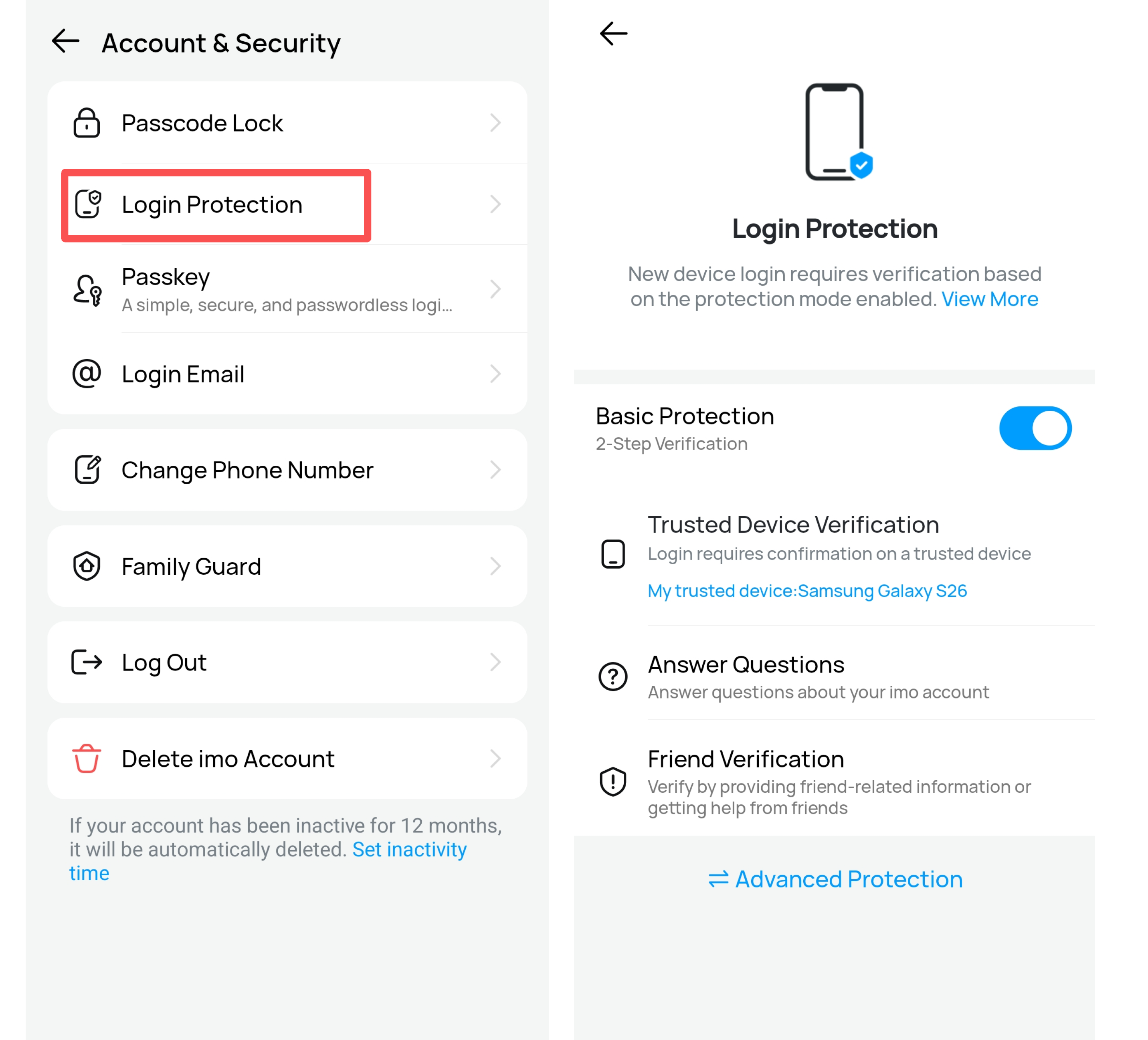
Turn On Basic Mode on imo
Open imo and find Login Protection in the account security settings. Select Basic Mode and follow the on-screen verification instructions.When Basic Mode is enabled, SMS verification is followed by an additional verification step.
- Confirmation on a trusted device
- Answer questions about your imo account
- Verify by providing friend-related information or getting help from friends
Unlike Advanced Mode, Basic Mode does not require the registered SIM card to be inserted in the device used for login. You still need a trusted device or enough account information to complete one of the available checks. Complete friend-assisted verification only through the prompts shown inside imo. Do not send your SMS verification code, password, or other private login information to a contact.
Turn On Advanced Mode on imo
Open Login Protection in imo and select Advanced Protection. The first time this mode is enabled, imo verifies that you have the SIM card linked to the account’s registered phone number.
Once Advanced Mode is active, the device used for a new login must have that SIM card inserted. imo may verify the SIM automatically by placing a call and checking the call log. SMS verification may also be available, although this method is not supported in some countries.
After it is enabled, the account cannot log in on a new iOS device.
Basic Mode and Advanced Mode cannot be active at the same time. Enabling one mode disables the other.
Turn Off Login Protection on imo
Open imo on a trusted device and return to the Login Protection settings. Choose the option to turn off the active protection mode, then complete the confirmation requested by the app.
When Will You Be Asked for the Second Step?
Two-step verification usually appears during login, not every time you open the app. It may be required when you use a new phone, reinstall the app, clear its data, or log in again after being signed out.
The second check may return after a password or recovery change, or after several failed login attempts. A login from an unfamiliar device or location can trigger the same check.
After you approve a device, the service may remember it as trusted. A trusted device may skip the second check until you sign out, remove it from the account, or receive a new verification request.Shared and public devices should not be marked as trusted.
Two-Step Verification FAQs
Is a verification code the same as two-step verification?
No. 2-step verification requires another identity check after the initial password, phone number, or verification code.
Does two-step verification replace a password or SMS code?
No. You still enter the password or SMS code first, then complete the second check.
Can Basic Mode and Advanced Mode be enabled together on imo?
No. Only one Login Protection mode can be active at a time. Enabling one mode automatically disables the other.
Can I log in on a new phone after enabling Login Protection?
It depends on the selected mode. Basic Mode may ask for trusted-device confirmation, account questions, or friend-related verification. Advanced Mode requires the account’s SIM card to be inserted in the login device and does not support login on a new iOS device.
Can two-step verification prevent every account takeover?
No. It can block someone who has only your password or SMS code, but not someone who also controls a trusted device or has all your verification details.