How to manage devices on imo?
To manage devices on imo, follow these steps:
1. Open the imo app on your device.
2. Tap on your profile page to open the menu.
3. Scroll down and tap on "Settings".
4. Tap on "Manage Devices."
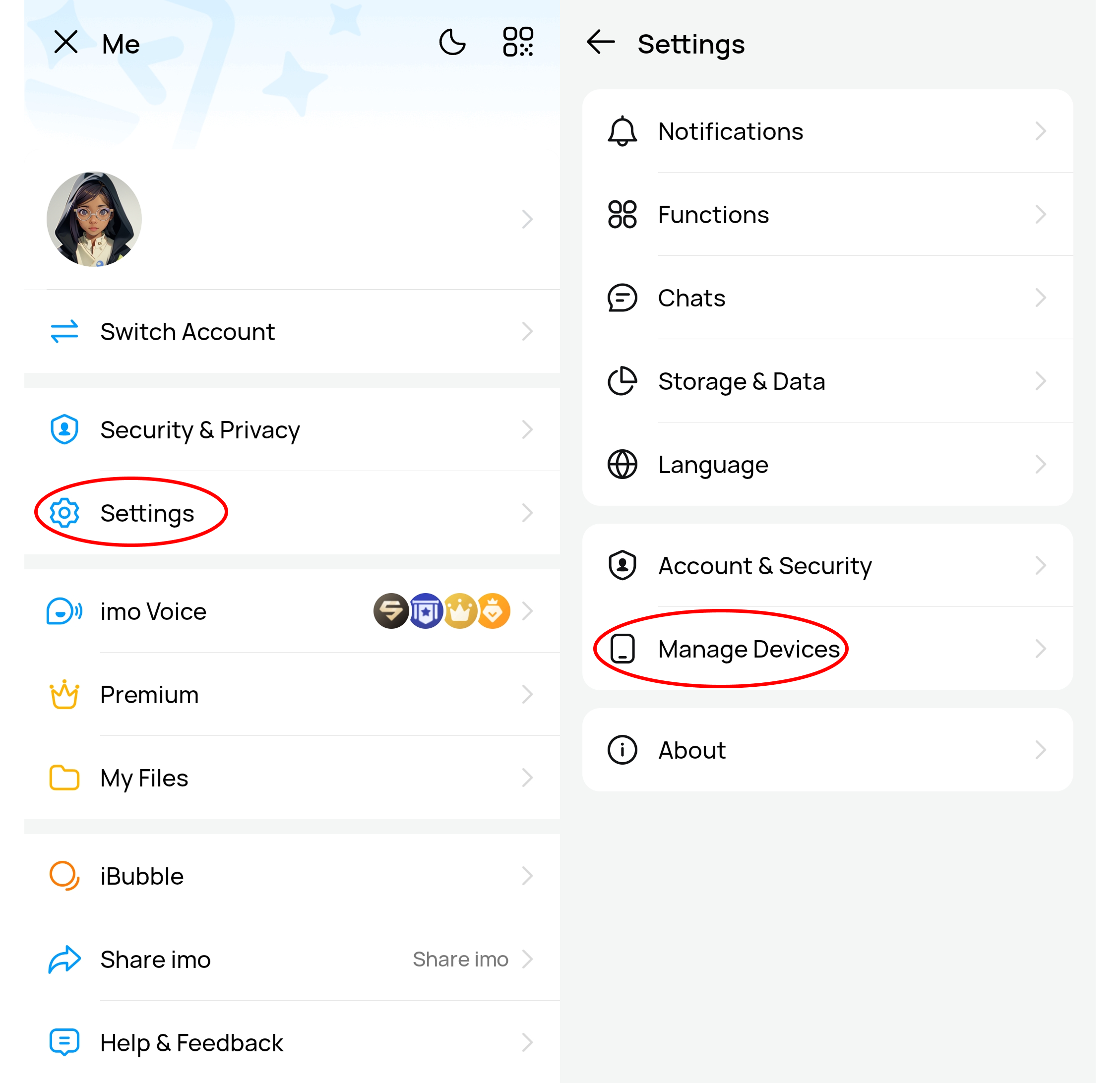
Here, you will find a list of devices that are currently logged in to your imo account.
You can manage these devices in the following ways:
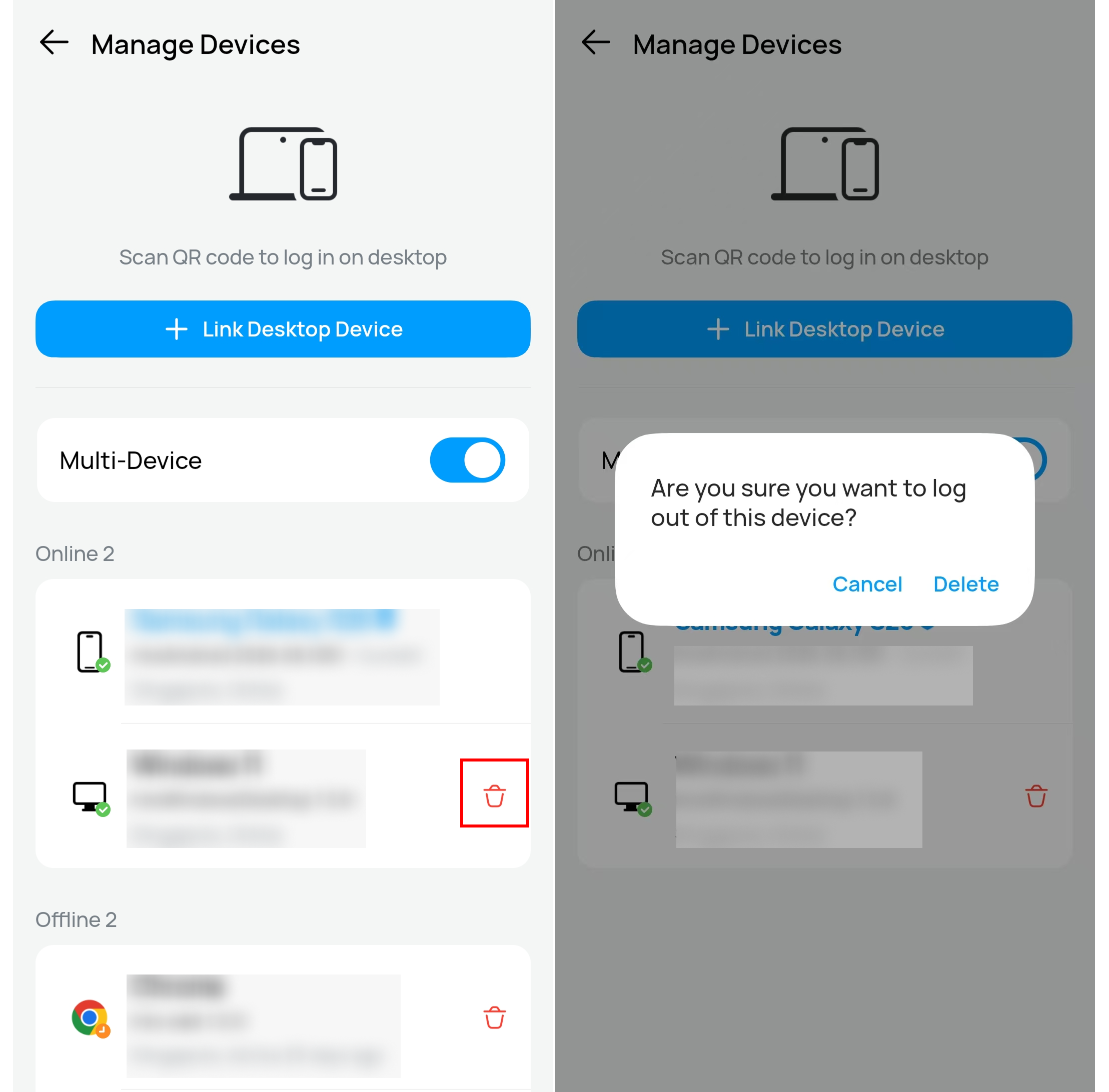
1. Remove a device:
To remove a device from your imo account, simply tap on the device name in the list and select "Remove."
The removed device can not enter your account without a new verification code.
2. To set/change your trusted device:
Please tap on the device you trusted and set as Trusted Device. If you have set a trusted device before, the new device will replace it as your new trusted device.
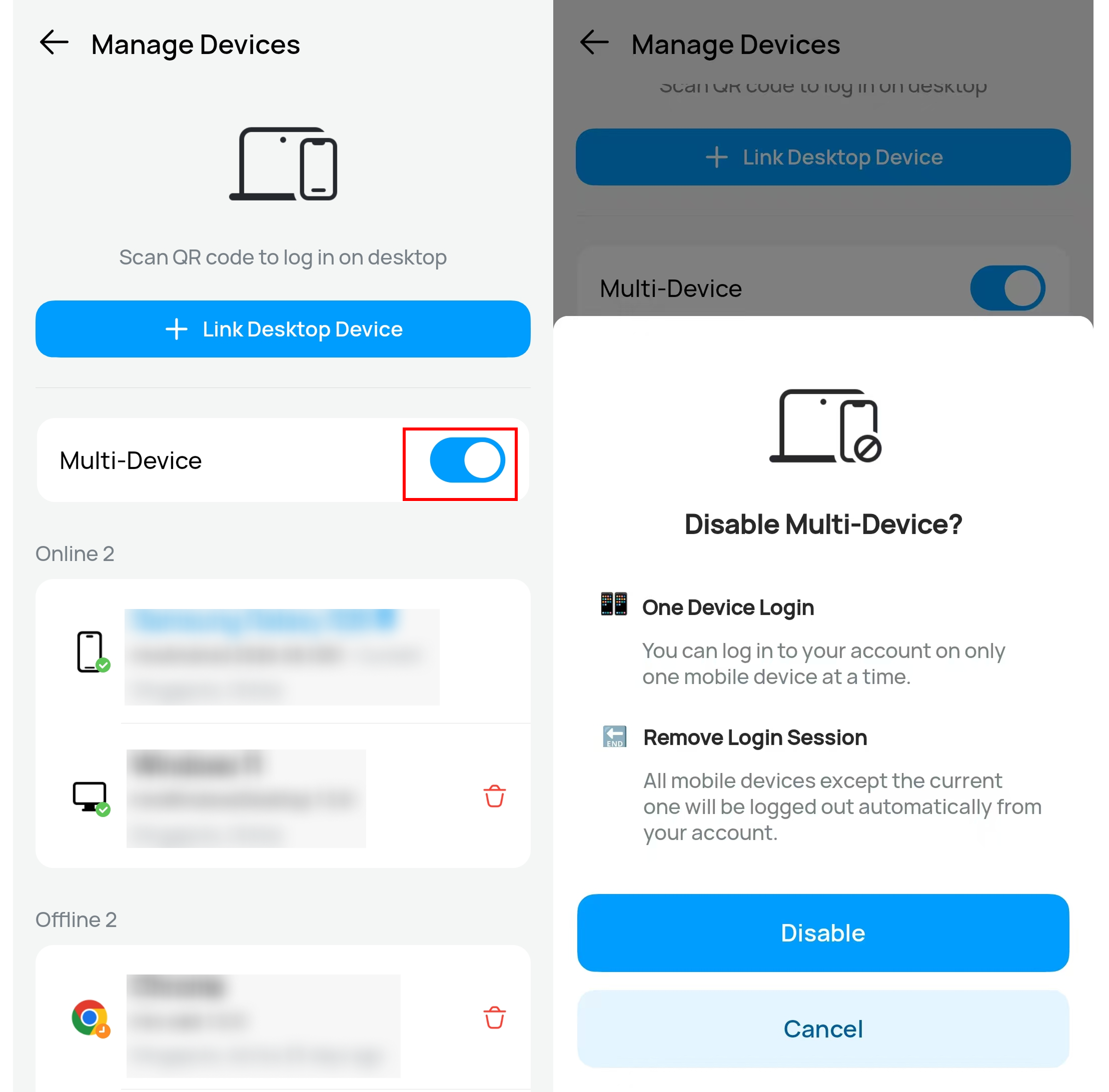
3. Enable or disable Multi-Device:
Multi-device enables you to log in to your account on multiple mobile devices at a time. If you disable this feature, you can log in to your account on only one mobile device at a time. And all mobile devices except the current one will be logged out automatically from your account.
Note:
It's important to regularly review the devices logged in to your imo account and remove any unfamiliar or unauthorized devices to ensure the security of your account.