imo Stories let you share photos, videos, and status updates, but these Stories are available for 24 hours. imo Story Album allows you to save posted Stories and keep them available longer. You can also manage who can view your Story Album through your privacy settings.
Why Save Stories to an Album?
Stories are great for sharing quick updates, but not every post is meant to disappear after a day. A family celebration, a memorable trip, or an important update can be saved to a Story Album so you can return to it later.
Instead of letting Stories disappear after 24 hours, Story Album keeps selected Stories organized in one place on your imo profile. You can create different Albums for different types of content and easily find the Stories you want to revisit.
How to Create and View an imo Story Album
Creating a Story Album on imo only takes a few steps.
To create a Story Album:
- Open your imo profile page and tap Story Album.
- Tap the “+” option on Story Album.
- Select the Stories you want to save, then tap “Add to Album” at the bottom. Choose to create a new Story Album or add them to an existing Album.
- If creating a new Album, enter a name for your Story Album and choose who can view it.
- Confirm to create the Album.
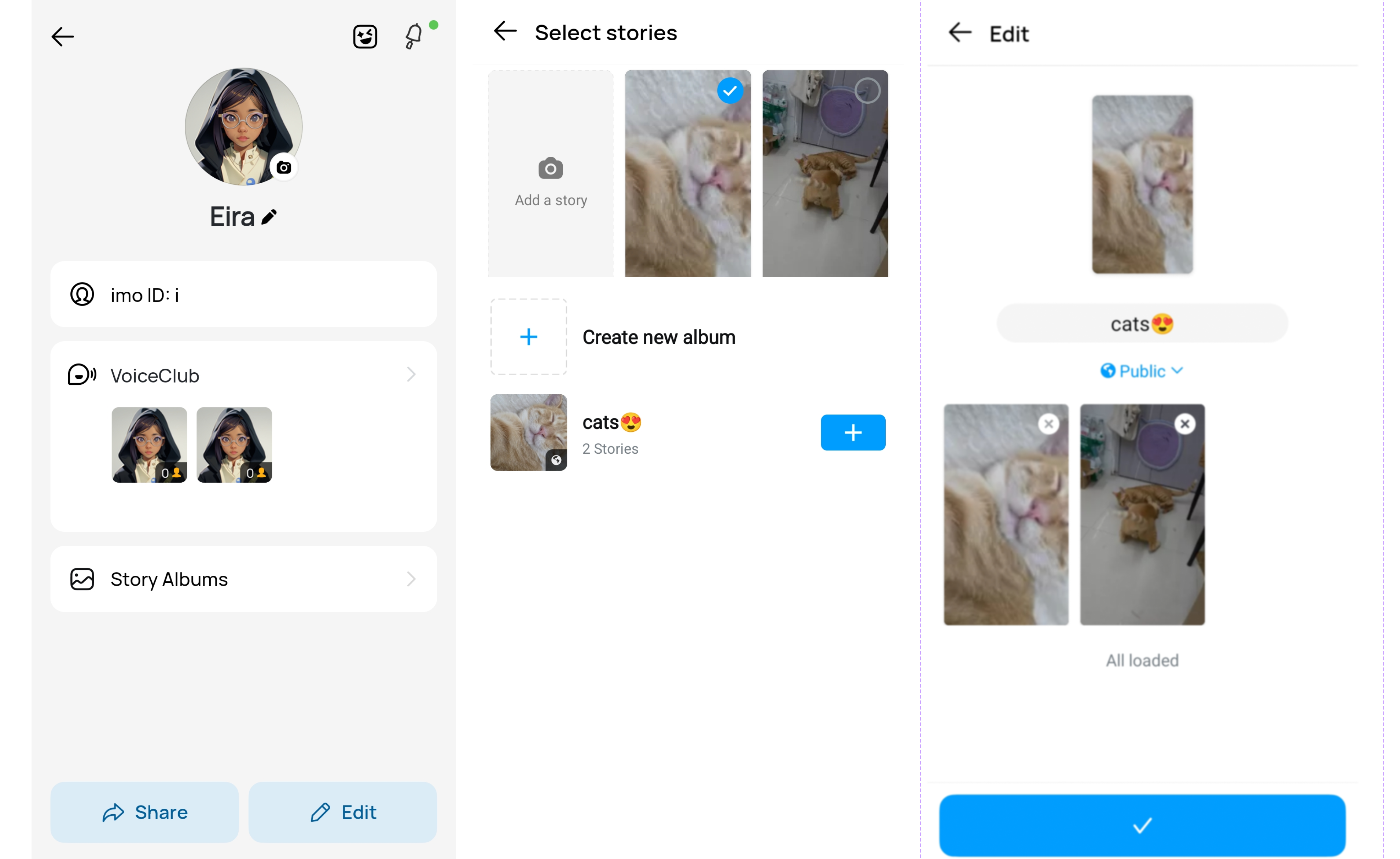
You can create multiple Story Albums for different types of Stories and organize your saved content based on your preferences. After creating an Album, you can view your saved Stories from your profile page by selecting the Story Album you want to check.
How to Delete Stories and Albums from imo Story Album
If you no longer want to keep a Story Album or a specific Story inside it, you can remove them from your profile. To delete a Story Album:
- Open your imo profile page and tap Story Album.
- Select the Story Album you want to remove.
- Press and hold the Album.
- Choose the delete option to remove it.
You can also remove individual Stories from an Album without deleting the entire Album. Open the Story Album, select the Story you want to remove, and choose the delete option. Once a Story Album is deleted, it will no longer appear on your profile.
Deleted Story Albums and Stories cannot be restored, so make sure you no longer need them before removing them.
Control Who Can See Your Story Album
You can control your Story Album privacy in two ways: who can view your saved Stories and whether your Story Albums appear on your profile.
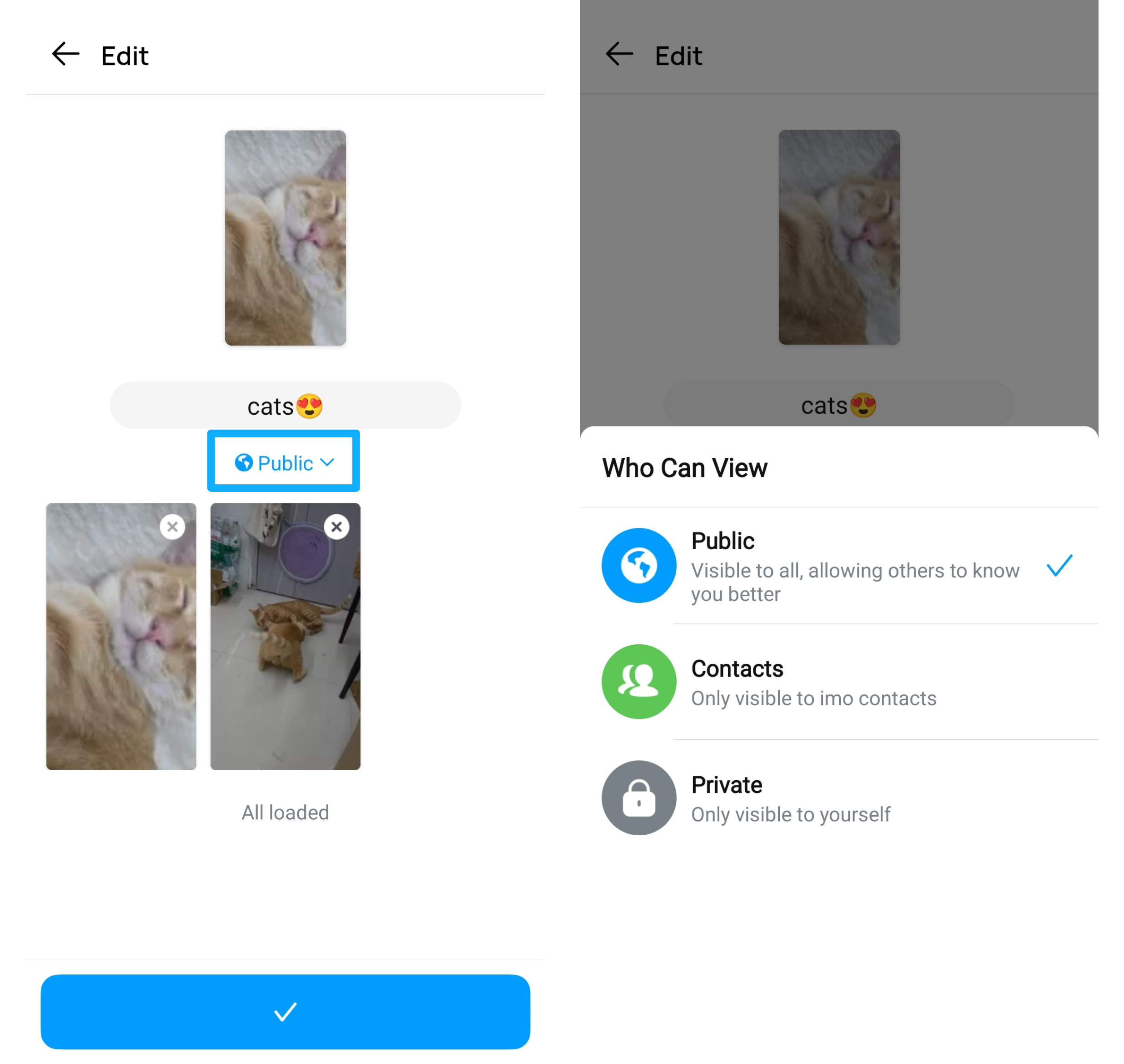
For each Story Album, you can choose who can view it by adjusting the album visibility settings. These settings apply only to the selected Story Album. Select Public, Contacts, or Private based on how you want to share your saved Stories. Public allows other users to view the album, Contacts limits access to people in your contact list, and Private keeps the album visible only to you.
You can also control whether your Story Albums are shown on your profile. Go to Me > Security & Privacy > Profile Privacy > Story Albums and choose who can see your Story Albums on your profile. If you select Nobody, your Story Albums will not appear on your profile and will remain visible only to you.