Signing in after reinstalling a messaging app doesn’t always bring back your old conversations. Before changing phones, back up your chat history and save any chat photos, voice messages or documents you want to keep.
What Your Chat Backup Includes
A family chat might contain years of messages, while the part you most want to keep is a video or a voice note. In the messaging app’s backup settings, look for what’s included, especially photos, videos and voice messages.
|
Chat content |
What to look for |
|
Text messages |
Whether the latest conversations are covered |
|
Photos and videos |
Whether media is included and videos need a separate option |
|
Voice messages and documents |
Whether the app supports backing up these files |
|
Chat attachments saved to your phone |
Where you saved them and whether they need copying separately |
Your phone’s backup may not include the full chat history, so check the messaging app’s own backup options.
Back Up Your Chat History Before Changing Phones
Before backing up, check how your messaging app transfers chats between your old and new phones. Moving from Android to iPhone may use a different method from moving between two Android phones.
Open the app’s chat backup settings on your old phone. If the app stores backups in a cloud account, make sure you can access that account on the new phone. An app can use your phone number for sign-in and a Google account for chat backups. If you have several Google accounts, note which one holds the backup.
If you’re changing your phone number too, check the app’s number-change instructions before losing access to the old number. You may still need the old number to receive a verification code.
Back Up imo Chats on Android
imo lets you back up chats and media to your Google account’s storage. Before changing phones:
- Open imo on your old phone and go to Me > Settings > Chats > Chat Backup.
- Tap Google Account and choose the account you want to use for the backup.
- Check Include Images and Include Videos. Turn on each option for the media you want to keep.
- Check Network for Backup. If it is set to Wi-Fi, connect your phone to Wi-Fi.
- Tap Backup Now and wait for the backup to finish.
- Review Last Backup and Total Size under Backup Status to check that the page shows the completed backup.
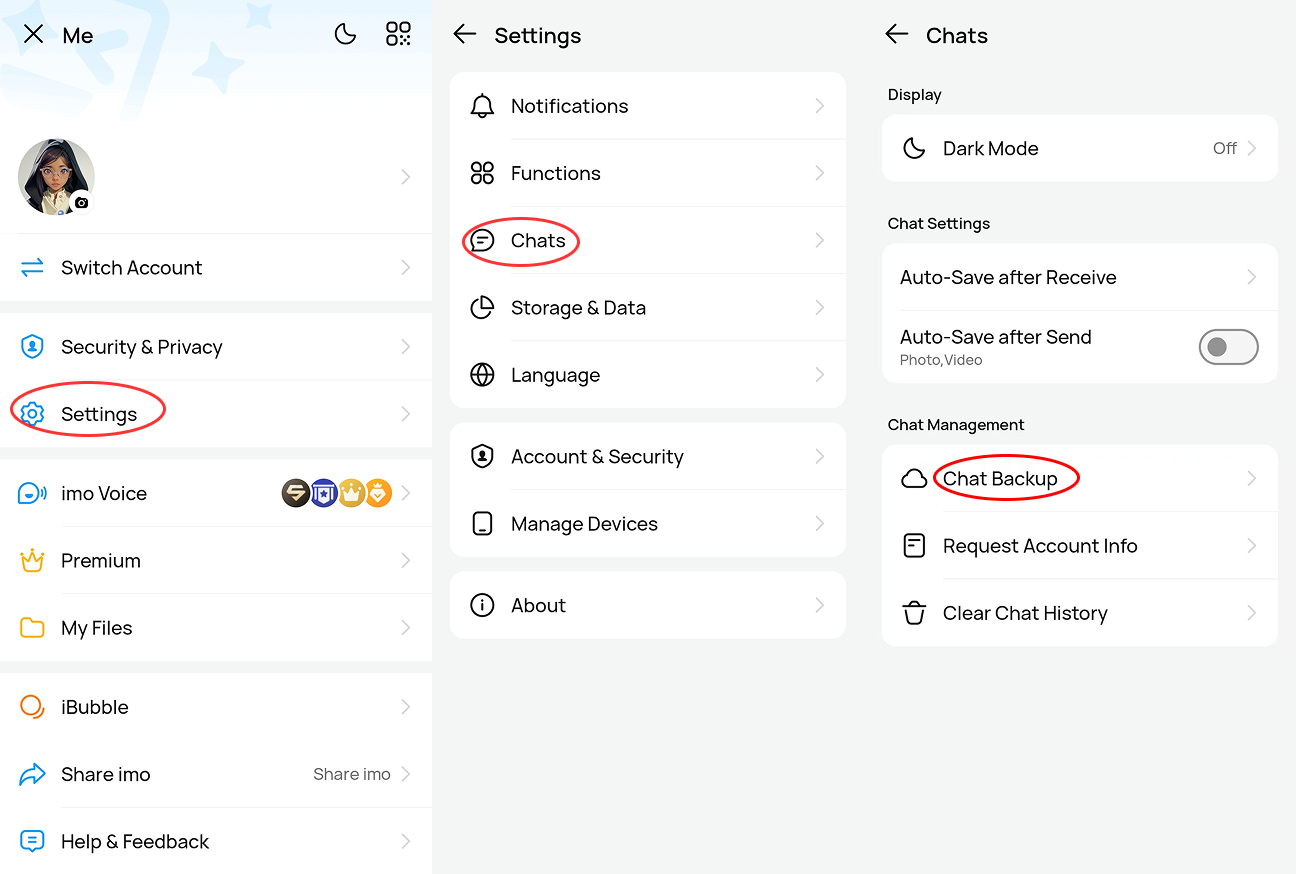
You’ll need Google services and enough free space on both your phone and your Google account. Keep imo installed on the old phone while you prepare the move, because uninstalling it removes the chats stored there. You can also set up Auto Backup for future backups. Before switching phones, check Last Backup to make sure your latest messages have been saved.
Save Important Chat Files Separately
Save important attachments somewhere you can open them without the messaging app. You could keep work documents in a project folder and family videos alongside your other photos.
If the app offers Save or Download, use it to keep a copy, then move that file to your computer or cloud storage. Play the saved audio or video files and open documents from their new location to check that they work.
A file opening in the chat doesn’t mean it is included in the backup. If your app exports chats as a text file, you may be able to read those messages without being able to restore them in the app.
Check Your Chats After Restoring Them
After the restore finishes, open a recent chat and an older conversation you want to keep. Find a message sent just before the backup and see whether it appears. Then try opening a few attachments.
Photos and videos may continue downloading after the messages appear. If media is still downloading, keep the phone connected until it finishes. If you can still open the old chats, look there for any messages or files missing from the new phone. Keep the old phone until you’ve checked the restored chats and saved any missing files you can still access on it.
Chat Backup and Restore Problems
For a missing cloud backup, check that you’re using the account that saved it. Check the last successful backup on the old phone; if the latest attempt failed, an older copy may still be available.
If your newest messages are missing, check whether they arrived after the last successful backup. If those messages are still on the old phone, check the app’s instructions for creating a fresh backup. Before restoring that backup on the new phone, check whether doing so would replace messages you’ve received there since the move.
Missing photos or videos may have been left out of the backup or may still be downloading. Restoring the same backup again won’t add files that weren’t included in it.
For a failed backup, see whether the error mentions storage, account access or the connection. Freeing space on your phone won’t fix a full cloud account. If you need support, include the app version, both device models, the error message and whether the problem occurred during backup or restoration.