imo has upgraded its security with a new App Lock feature.
It's a security feature that locks your imo app with a passcode or fingerprint. No one can open your chats without your permission, even if they have your phone. This guide shows you exactly how to set it up in under a minute.
How to Enable App Lock in imo:
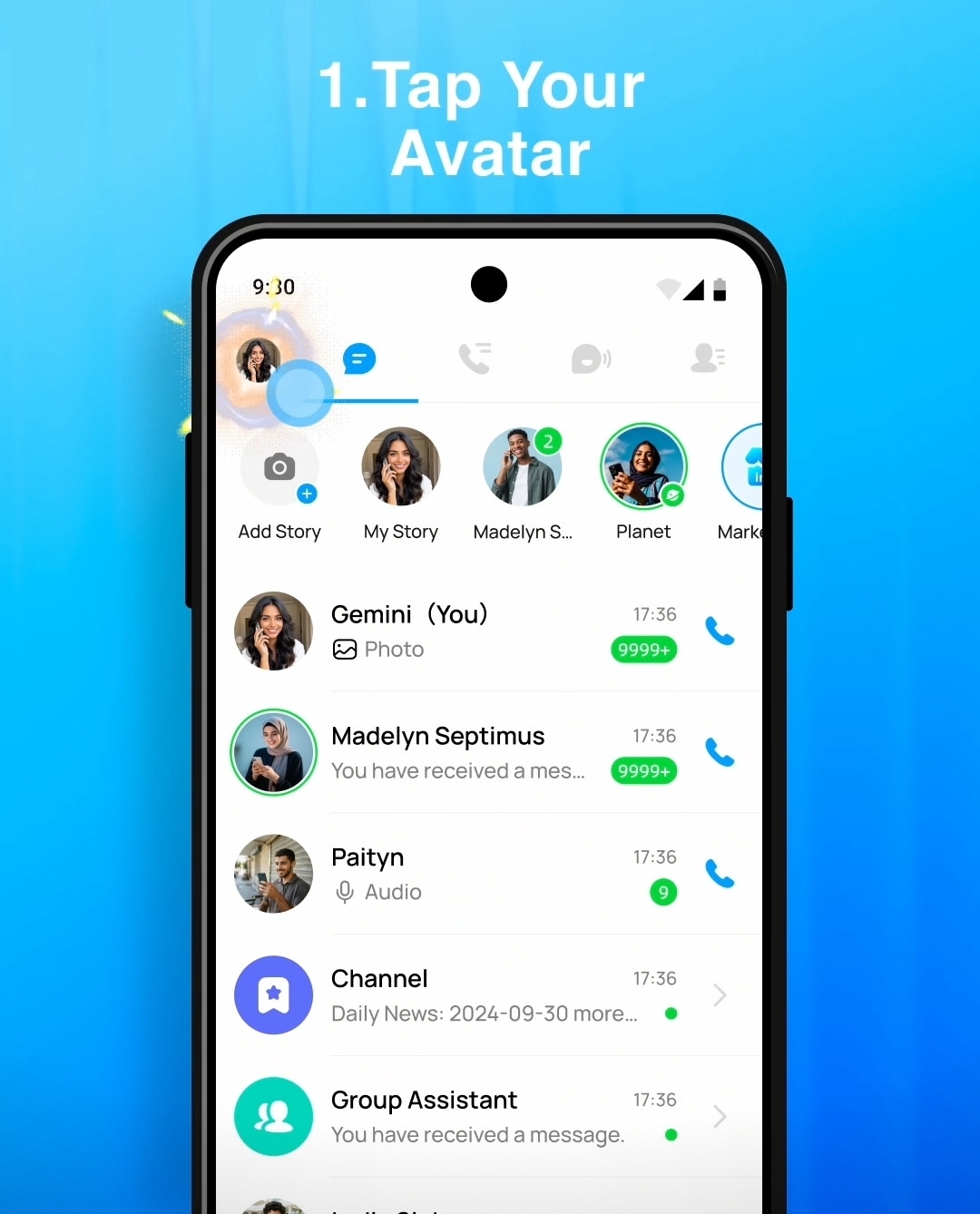
Step 1: Tap Your Avatar
On the main chat screen, tap your profile picture in the top-left corner.
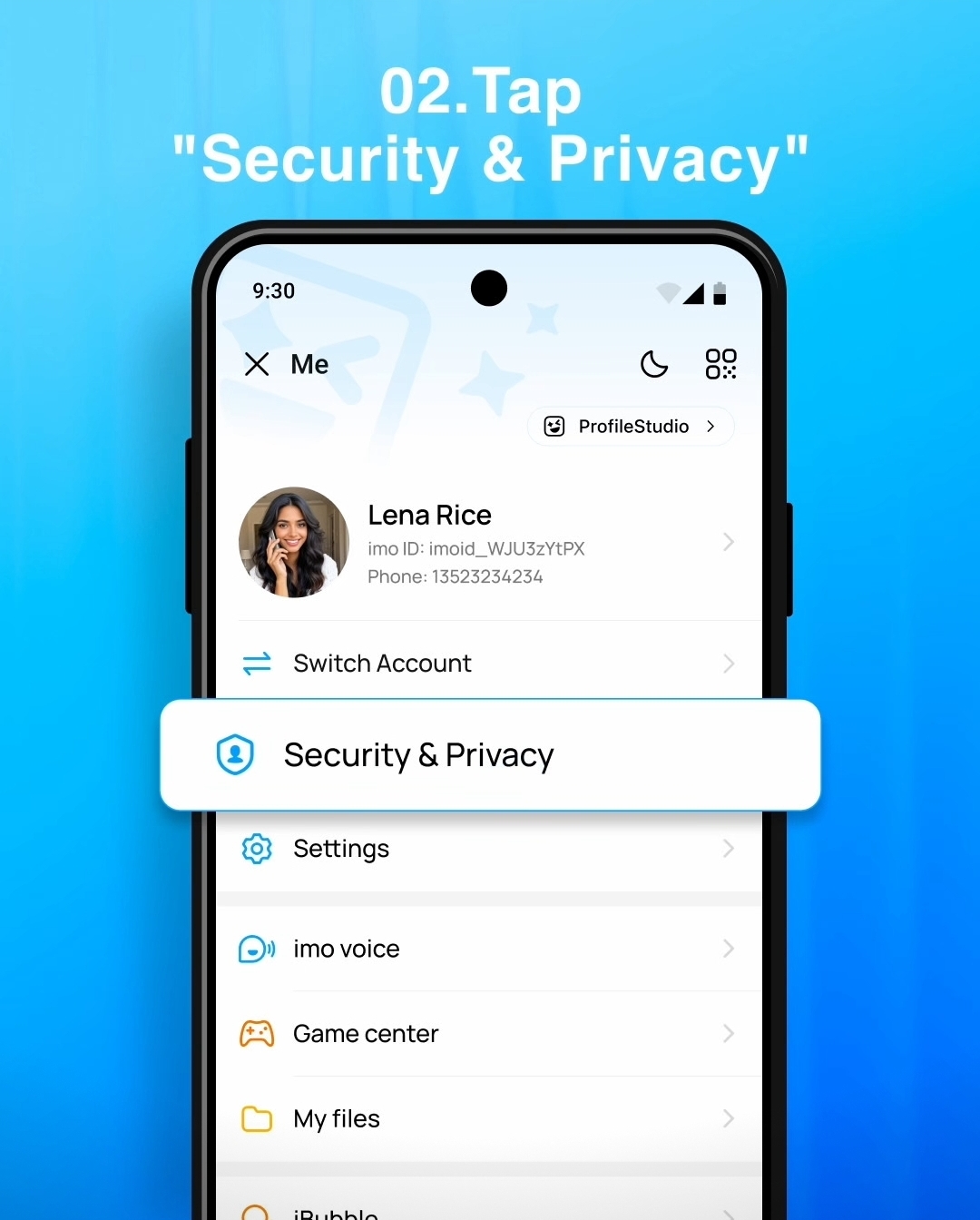
Step 2: Go to "Security & Privacy"
In the menu, select "Security & Privacy."
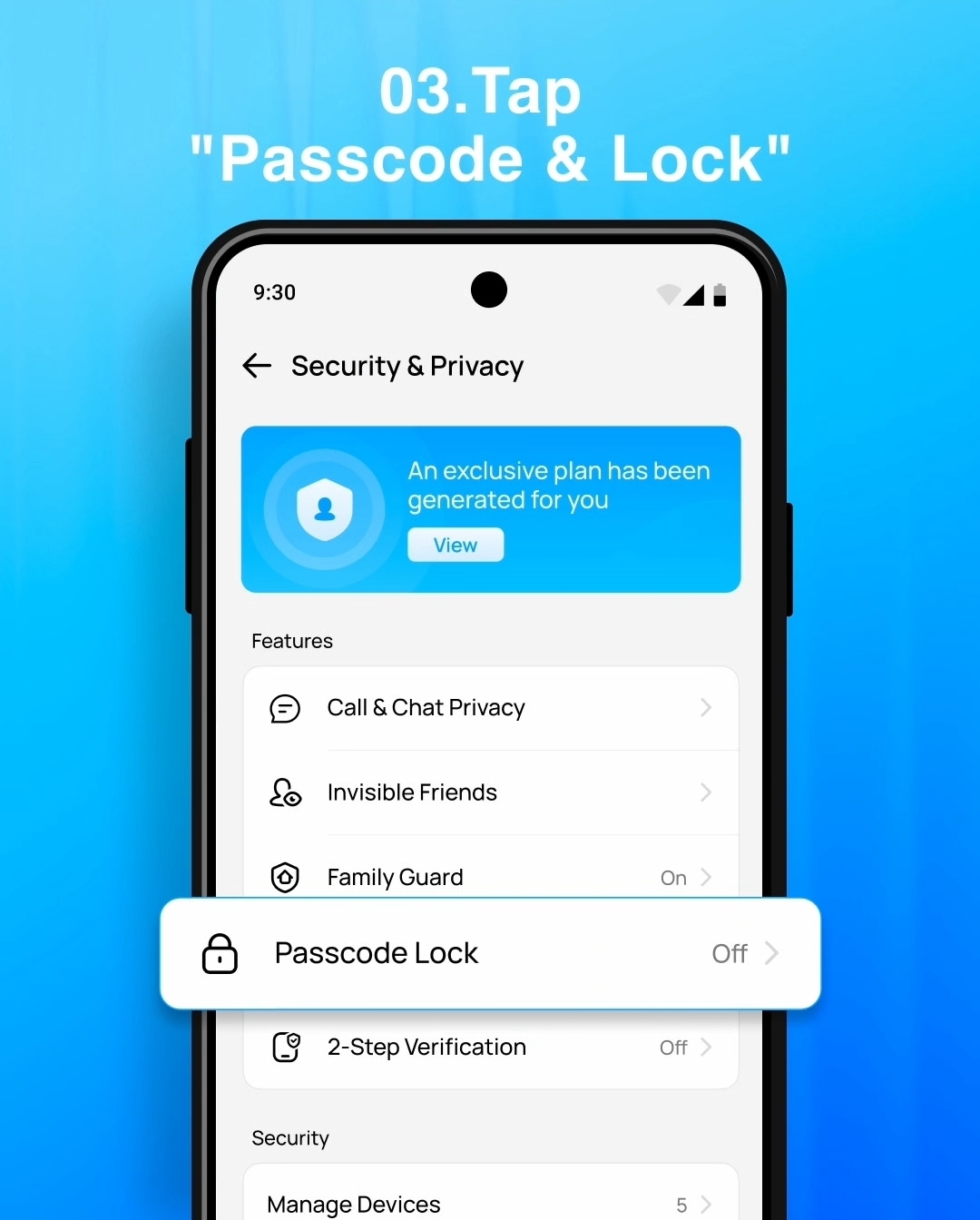
Step 3: Turn on "Passcode Lock"
Find and tap the "Passcode Lock" feature.
Step 4: Enter Your Passcode
You'll see a screen titled "Enter a Passcode." Type a secure numeric code you'll remember.

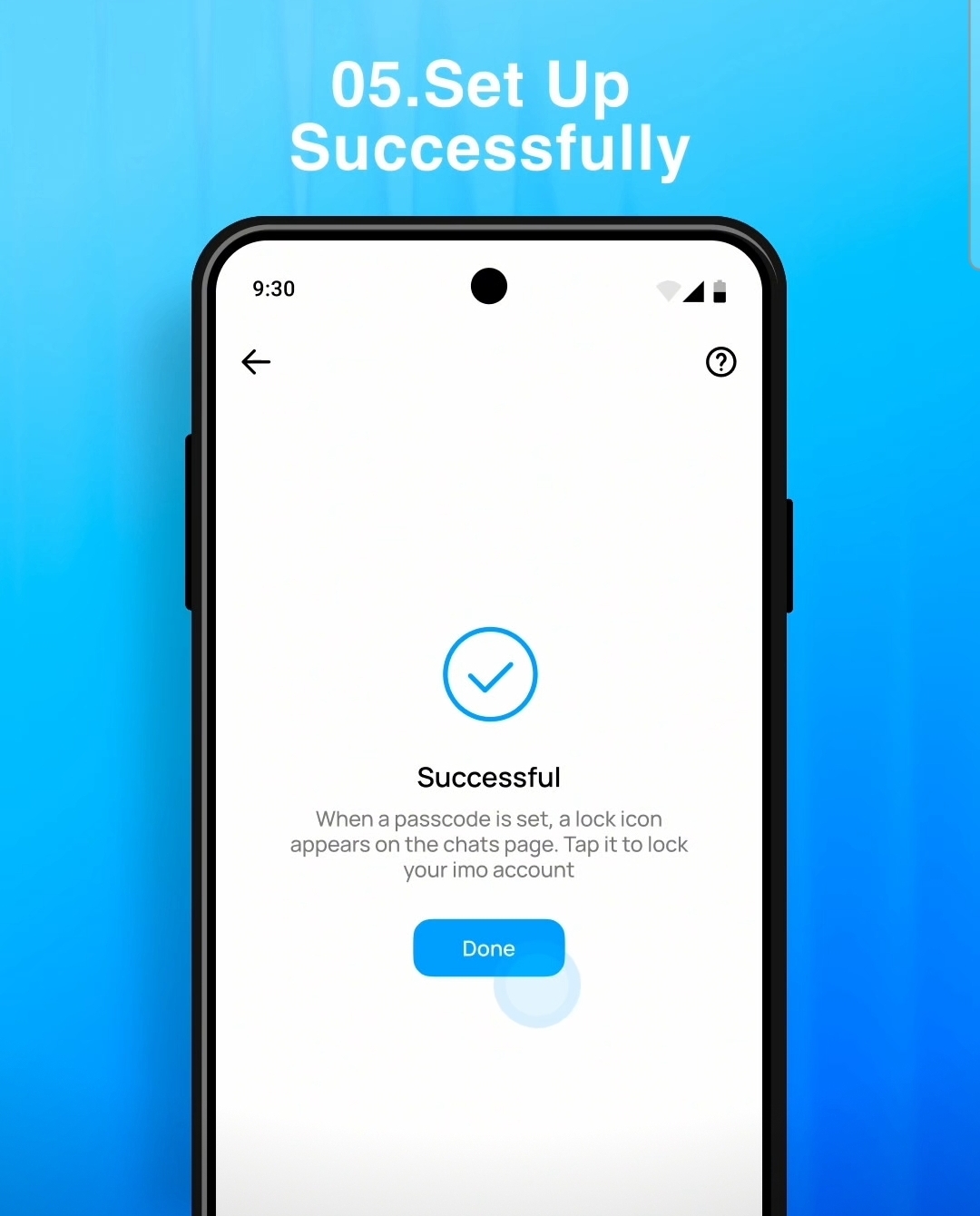
Step 5: Confirm Setup
After entering the passcode, you'll see a "Successful" confirmation screen. This indicates that you have successfully set up the App Lock feature.
Step 6: Customize Your Lock Settings (Optional)
Go back into "Passcode Lock" settings to customize:
Change passcode: Update your passcode anytime.
Auto Lock: Set how quickly imo locks after you leave (e.g., 1 minute).
Unlock with Fingerprint: Enable fingerprint unlock for faster access.
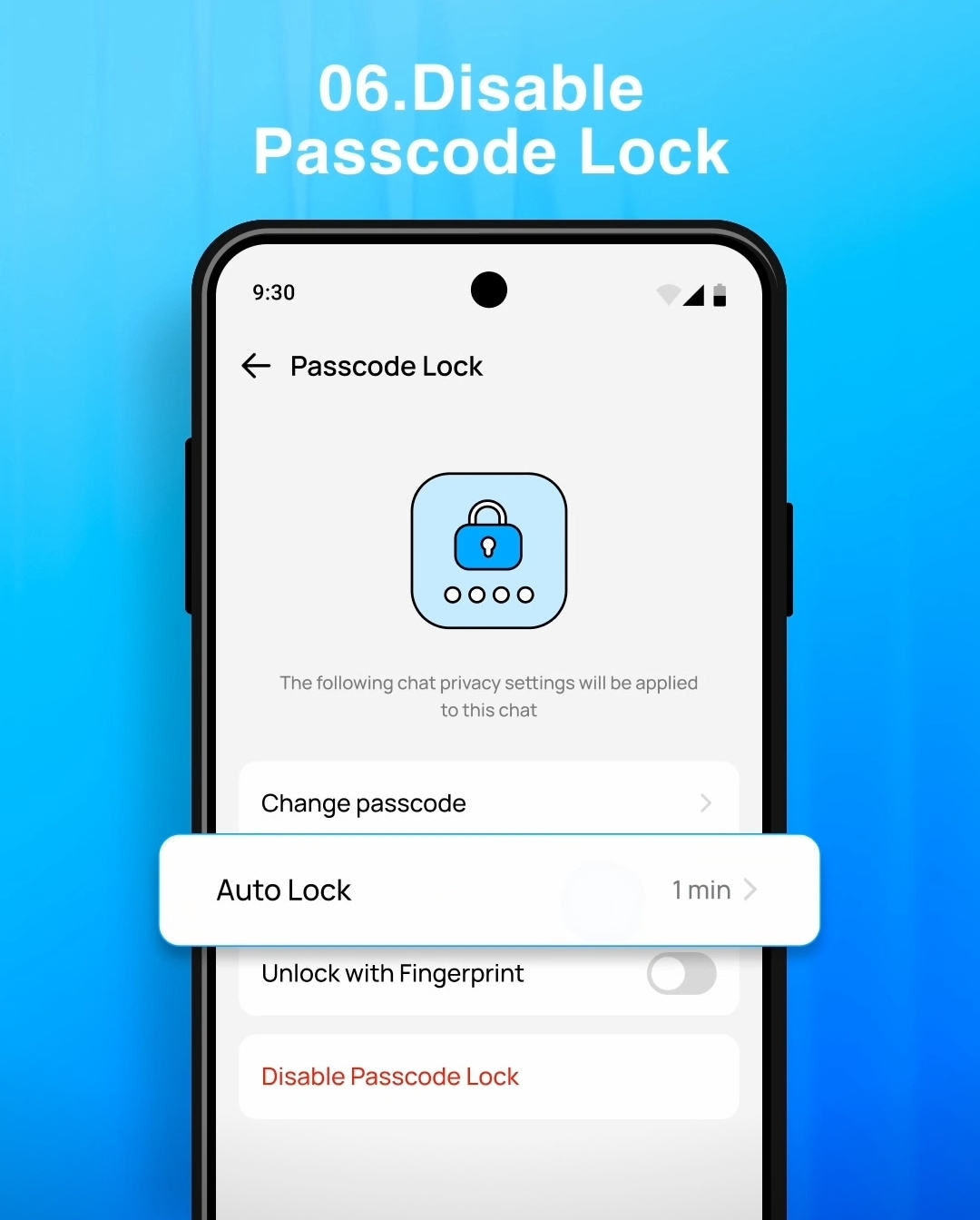
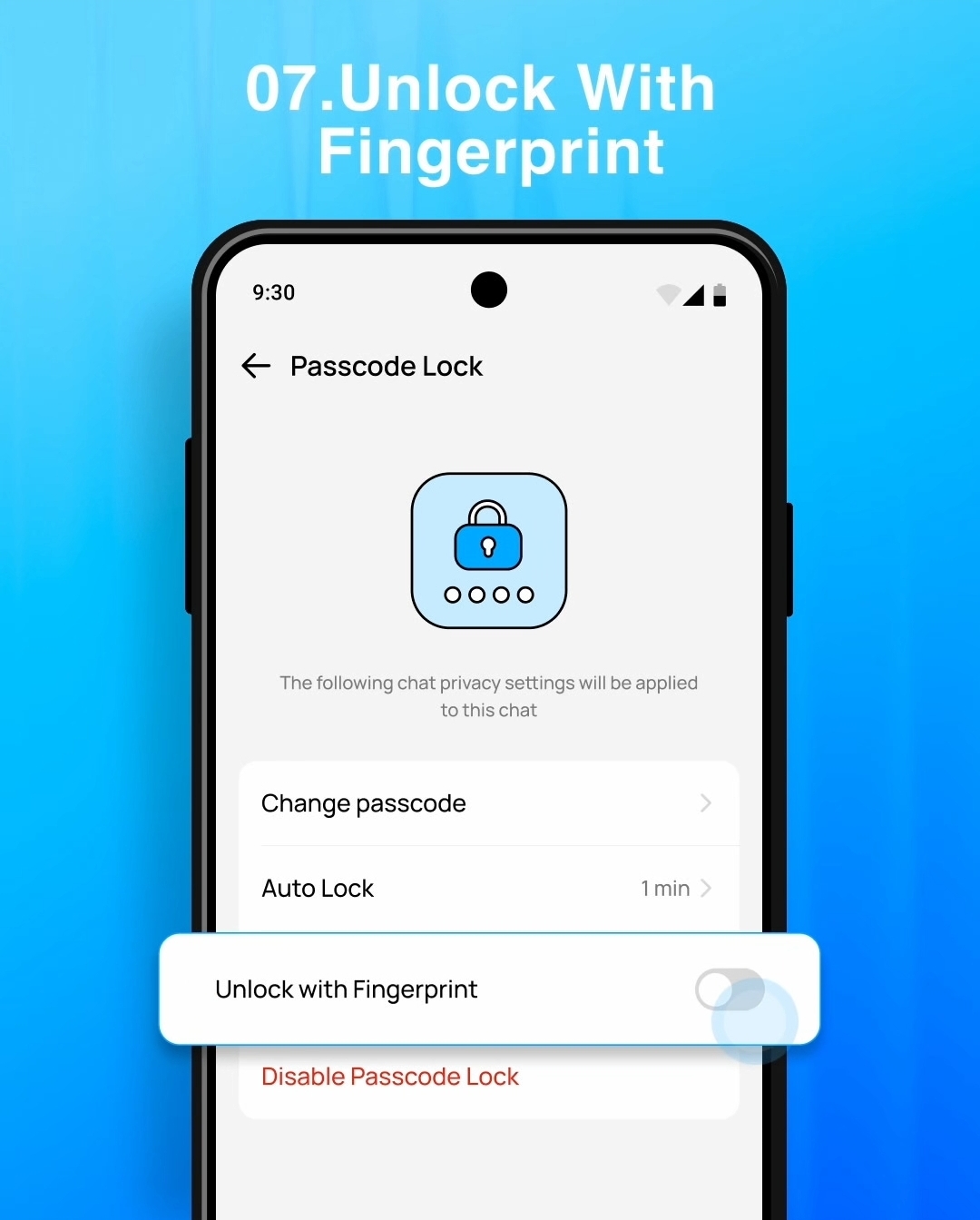
If needed, you can tap the option labeled “Disable Passcode Lock” on the same settings page. This will turn off the feature and remove the passcode requirement.
imo's Passcode Lock is a quick and effective way to add an extra layer of privacy. By setting a passcode or using fingerprint unlock, you ensure that only you can access your messages and calls.
Read more: How to Lock App on Your Phone: 3 Methods