A chat wallpaper appears behind every message in a conversation, so the text needs to remain easy to read. A detailed photo may look clear in your gallery but feel too busy once it fills the chat screen. You can select a built-in design or upload a chat background image, then apply it to one conversation or all chats.
Change Your Chat Wallpaper
To change the wallpaper for a conversation:
- Enter the imo chat with the friend whose background you want to change.
- Tap the three dots in the upper-right corner.
- Select Wallpaper.
- Choose a background color, open Library to browse the included images, or upload your own picture.
- Select the background you want to use.
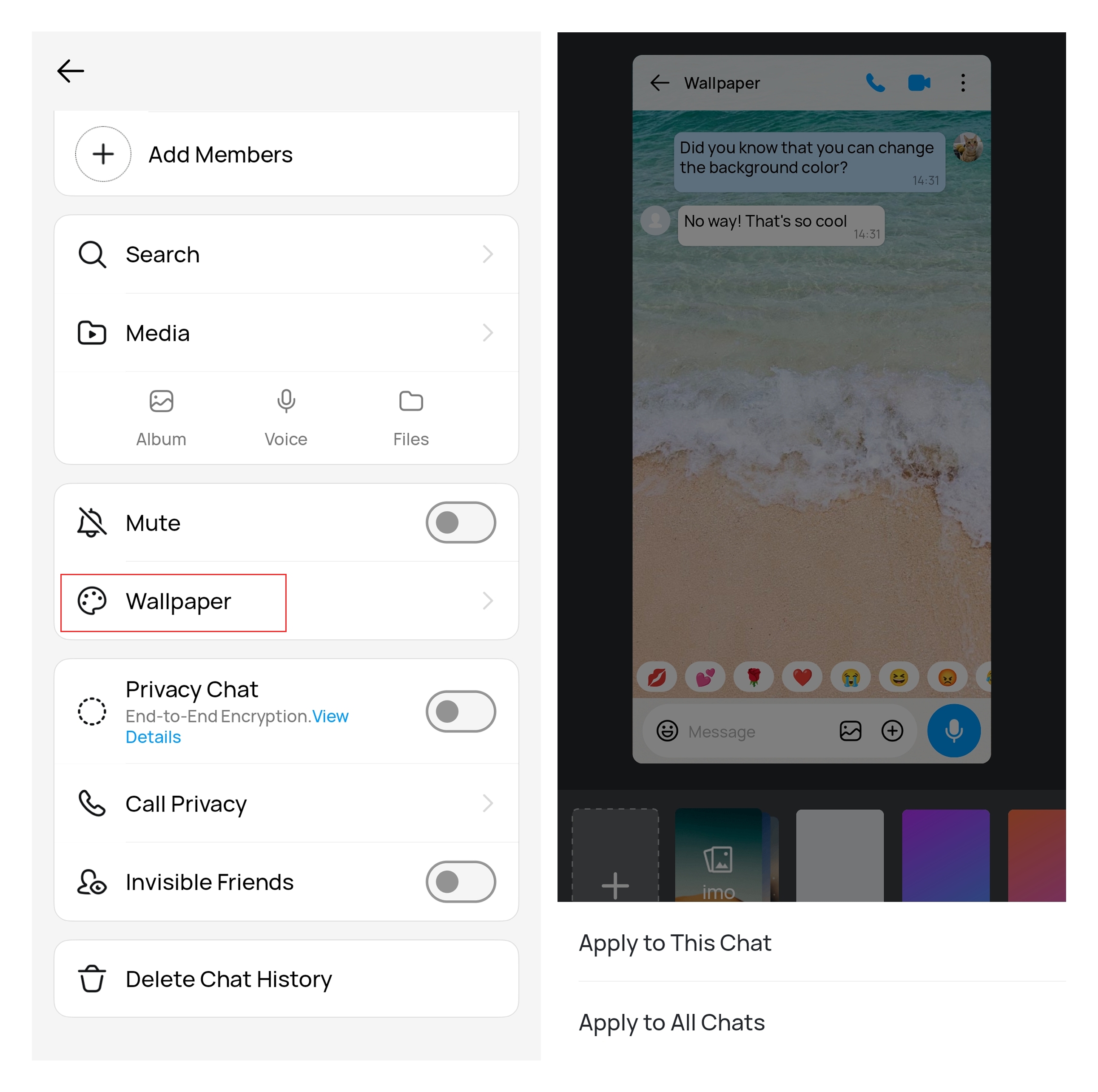
The new wallpaper will appear behind the messages in that conversation. Changing it will not remove messages, shared photos, or other chat content
Apply a Wallpaper to One Chat or All Chats
Once you select a background color, Library image, or uploaded photo, you can use it for the current conversation or across all your chats.
- Tap Apply to This Chat to change only the conversation currently open. Your other chats will keep their existing backgrounds.
- Tap Apply to All Chats to use the selected wallpaper across your conversations. If you later want one chat to look different, open that conversation, choose another wallpaper, and select Apply to This Chat.
5 Chat Wallpaper Ideas That Keep Messages Easy to Read
Backgrounds with open space around messages and timestamps are easier to read than highly detailed photos.
A soft solid color
Muted blue, green, beige, or gray keeps the screen simple and leaves enough contrast around message bubbles. Very bright colors may feel harsh during long conversations.
A simple image from the Library
Choose an image with little detail behind the main message area. Patterns concentrated near the edges are less likely to interfere with the messages in the middle of the screen.
A slightly blurred personal photo
If the photo looks too busy behind the chat, use a slightly blurred version. A light blur keeps the photo recognizable while making timestamps and reaction icons easier to see.
A photo with the subject away from the center
The main subject may be hidden if it sits directly behind the message bubbles. A picture with the subject near the upper or side area usually fits a chat screen better.
A darker background for evening chats
A dark background produces less glare when you chat at night. Check that incoming and outgoing message bubbles remain distinct from the background.
Prepare a Personal Photo for Your Chat Background
Chat screens are tall and narrow, so a horizontal group photo may be heavily cropped. Portrait-oriented images usually fit better. Keep the main subject away from the outer edges in case the app trims part of the picture.
Photos containing text are harder to use as wallpaper. The words may be covered by messages or cropped on phones with different screen sizes. If the image includes a date, quote, or sign that matters, place it near the top and check the result after applying the wallpaper.
Brightness also changes how much detail remains visible. A pale photo behind light message bubbles can make their edges difficult to see. Darken the photo slightly or choose a less detailed image instead of relying on the original version.
Avoid using screenshots that contain phone numbers, addresses, account details, or private conversations. Even if the wallpaper is only used inside a chat, a screenshot of that conversation could capture the background as well.
How Dark Mode Changes Your Chat Wallpaper
When dark mode is turned on, a dark layer appears over the wallpaper. The original image remains visible underneath, but its colors and details appear dimmer. The message bubbles, timestamps, reaction buttons, and chat controls also switch to darker colors.
You do not need to upload a separate wallpaper for dark mode. However, an image that is already very dark may become difficult to see beneath the added layer. Wallpapers with clear shapes and moderate brightness tend to work well in both light and dark mode.
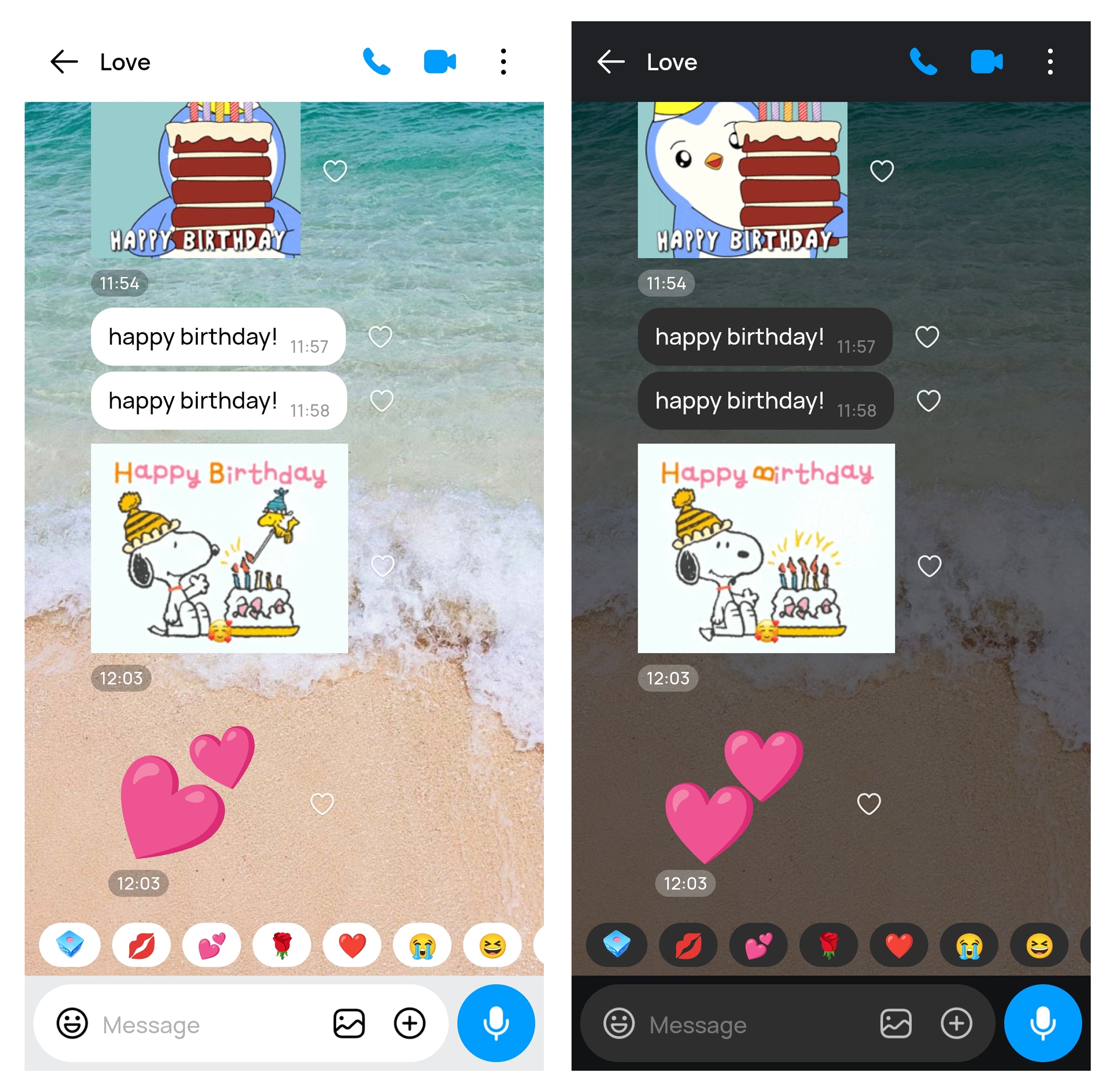
To change the app theme, follow the imo Dark Mode guide.
Can Other People See Your Chat Wallpaper?
Changing a chat wallpaper customizes how the conversation appears on your phone. Your chat wallpaper is visible only on your device. It does not change the background on the other person’s screen.
This also means that choosing a shared photo as your wallpaper does not place that image in the chat history. Send the original photo separately if you want the other person to receive it.
How to Restore the Default Chat Wallpaper
Open the conversation, tap the three dots, and return to Wallpaper. Choose the original background color or select a default image from the Library.
Restoring the background only changes the appearance of the chat. Your messages, calls, files, and shared media remain in place.
Chat Wallpaper FAQs
Can I use my own photo as a chat wallpaper?
Yes. Open the chat, tap the three dots, and select Wallpaper. Choose the custom upload option and select a photo from your phone.
Can I use different wallpapers for different chats?
Yes. Open each conversation separately and choose its wallpaper from the three-dot menu. Changing one chat does not require you to change the others.
Why does my photo look cropped as a wallpaper?
The app adjusts the image to fill a vertical phone screen. Wide photographs may lose content along the sides. Use a portrait-oriented image and keep the main subject near the top or side of the frame.
Why can’t I find the Wallpaper option?
Make sure you opened the three-dot menu from inside a conversation. If Wallpaper is still missing, update imo to the latest version from your device’s app store, reopen the app, and check the chat menu again.